E-books from Latex
Volker Gottwald – Status 14.1.2015
To create ebooks from new or existing Latex (.tex) files on a Windows PC you need
Open the file “install-tl-windows.exe” from you PC. Follow the instructions given. The installation may take 60 minutes or more depending on your internet connection. Also allow to install the Editor that comes with the package. Compiling the tex-files is easier with a good editor.
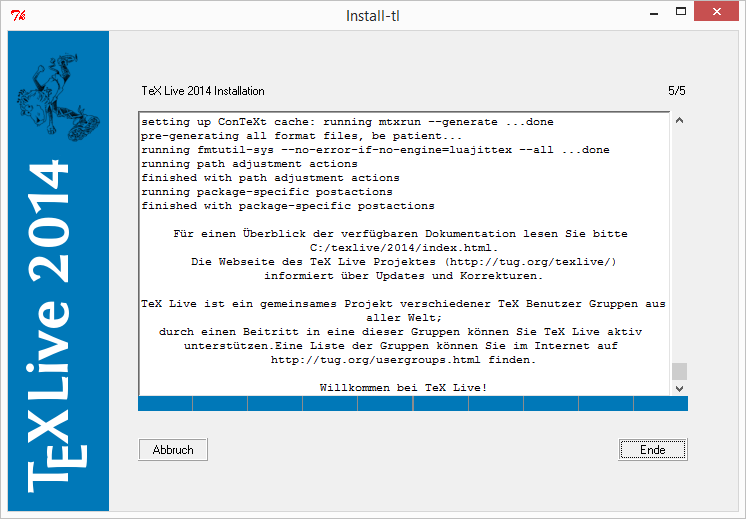
After a successful installation you should see this
This is more to “copy” files to the correct location than “installing” anything. Extract the two downloaded zip files where you stored your download.
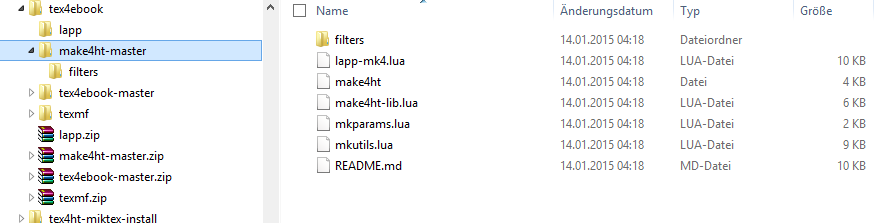
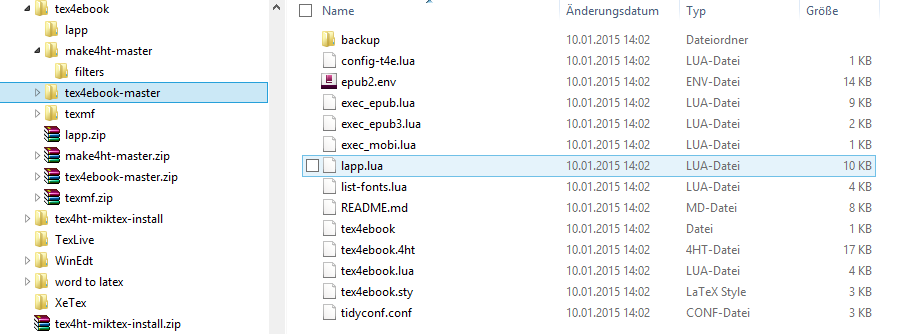
This will create two directories
make4htmaster
and tex4ebook-master
After TexLive is installed go to the Command Line interface (cmd) and enter
kpsewhich -var-value TEXMFHOME
Depending on your Windows Installation and language you will see different output from this command.
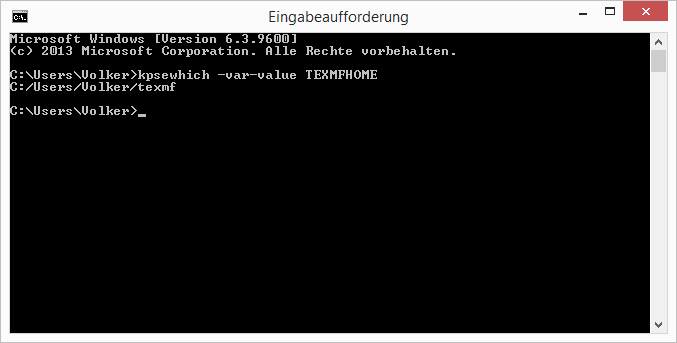
In my case it was
C:/Users/Volker/texmf
You may need to create this directory if it does not exist. Also you need to create the subdirectory
Copy the files extracted from the two links above into this directory. In case you decide to copy the directory as if from your download storage area you need to rename the directories from
Then
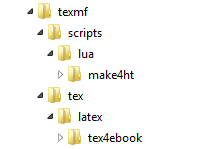
Finally it should look like this on your PC
Below the directory C:/Benutzer/Volker (resp. your personal settings)
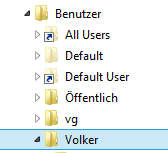
You should see the texmf directory like this
Open Texworks and create a little testfile like this one
\documentclass{article}
\begin{document}
hello world
\end{document}
Create a PDF file form this with Xelatex for example and see if you Latex installation works.
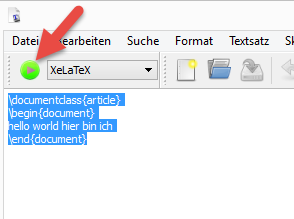
As a result a PDF file should open in a separate window. Now you can proceed to create an e-book from this file
To make this easy without using the command line and bat files open “bearbeiten” and click on “Einstellungen”
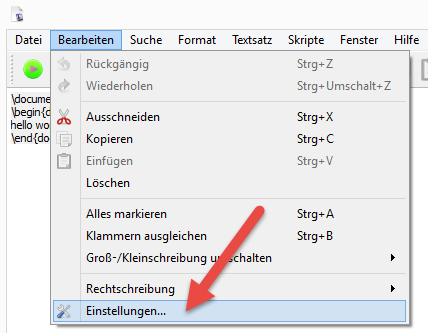
This window will open
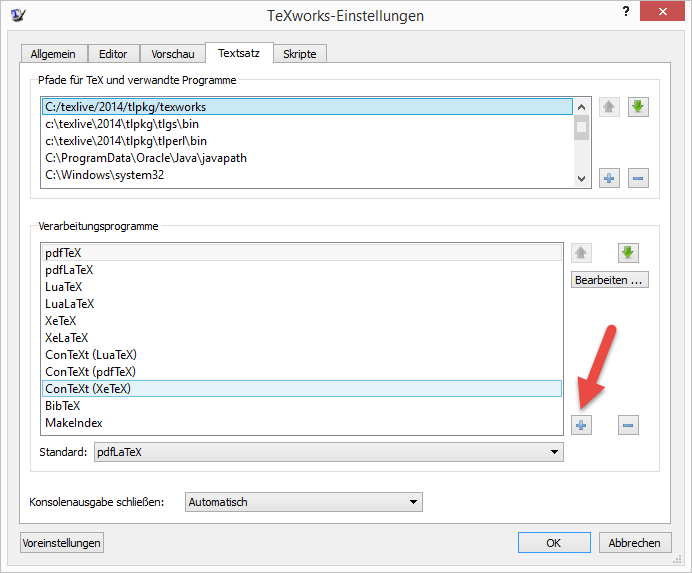
Click on the plus sign to create a new entry
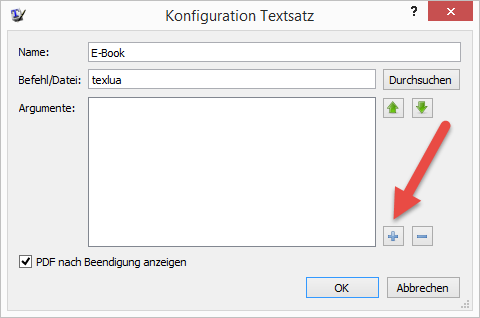
Ent a Name like “E-Book” (or whatever you like) and enter the command “texlua” in the filed below.
Next click on the + sign for adding arguments to this command
Enter
C:\Users\Volker\texmf\tex\latex\tex4ebook\tex4ebook.lua
As first argument (This is exactly the location of the tex4ebbook.lua file on your PC. You location might be different according to you Windows installation)
As second argument enter
$fullname
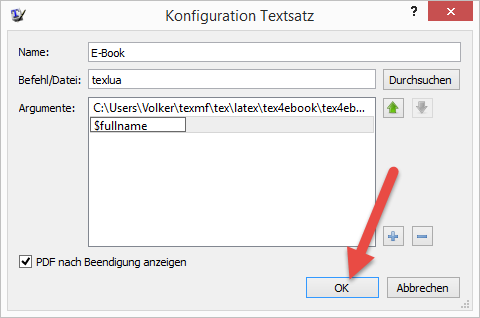
Finally click on OK for each open window (2) to close and save your changes.
From the menu select E-Book as the “Compiler” and click on the green “run” button
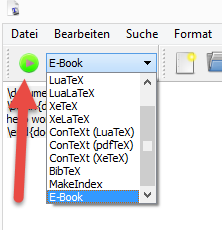
The creation of the e-book should run without error messages and if so, you will find the ebook in an subdirectory of the original tex-file location with the name [filename]-epub and inside you have your e-book named [filename].epub

If you have calibre installed, you can open the book and check the content.
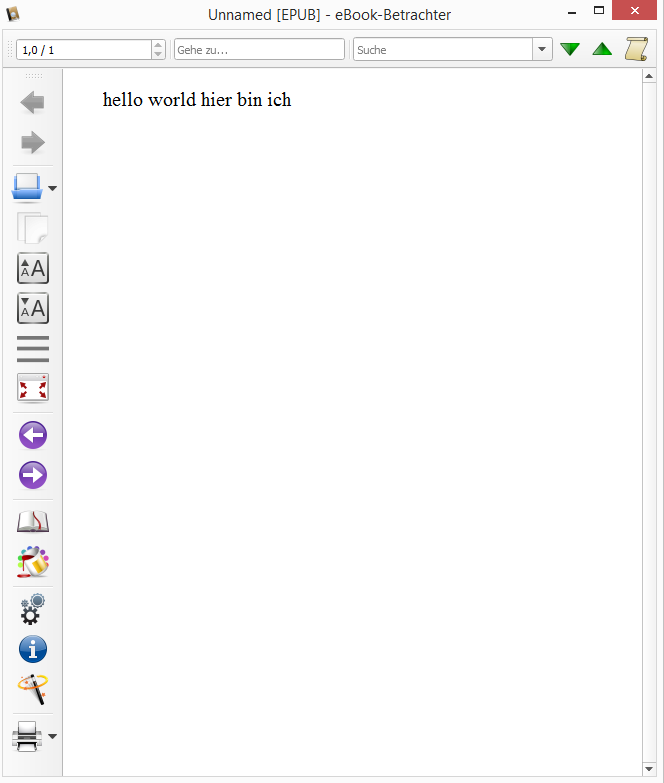
From here you can experiment with different tex-files that you already have and/or add commands to you current file to learn more how the ebook compares with PDF files for printing.
In case you want to use special fonts with the fontspec package of Latex you need to have the following lines of code in your preamble of the tex file after declaring the document class
\ifdefined\HCode
\usepackage[ngerman]{babel}
\usepackage[T1]{fontenc}
\usepackage[utf8]{inputenc}
\else
\usepackage{polyglossia}
\setdefaultlanguage{german}
\usepackage{fontspec}
\setmainfont[Ligatures=TeX]{DejaVu Serif Condensed}
\setsansfont[Ligatures=TeX]{DejaVu Sans}
\fi
The first part is used fort he ebook. The second part for your PDF file